
Zoom Phone Integration Setup Guide
SentientPro connects to Zoom Phone to bring your team's calls into conversation intelligence automatically. Once a Zoom account admin connects the integration, calls made by your team appear in SentientPro with their recording and transcript — no action needed from individual reps.
What this integration does
- Imports your team's Zoom Phone calls automatically, shortly after each call ends
- Brings in the recording and transcript for each call, and runs them through SentientPro's conversation intelligence — signals, call-type classification, and the weekly digest
- Optionally imports your historical calls from before the integration was connected
- Read-only — SentientPro does not place calls, modify, or delete anything in your Zoom account
Requirements
- A SentientPro account on the SenPro Teams plan (phone integrations are not available on other plans)
- A Zoom account with Zoom Phone licences active
- A Zoom account admin or owner to authorize the connection — Zoom requires admin privileges because the integration requests organization-wide access
- Optional: Zoom AI Companion / Power Pack, which provides native call transcripts. Without it, SentientPro transcribes the recording itself
1. Install the app
The integration is connected once, for your whole organization. Individual team members do not need to connect anything themselves.
- Sign in to SentientPro and open Settings → Integrations.
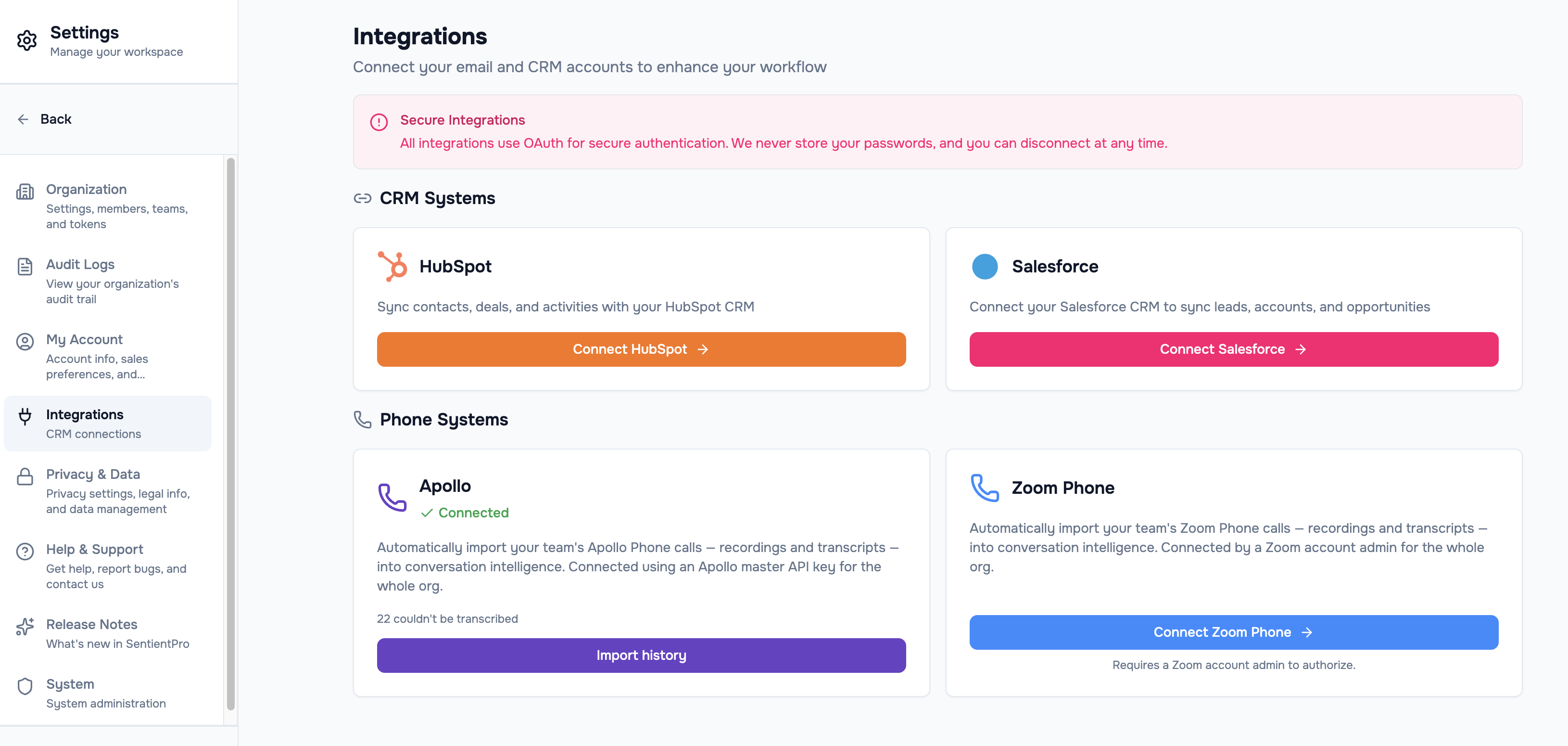
- Under Phone Systems, find the Zoom Phone card and click Connect Zoom Phone.
- Zoom will prompt you to sign in and authorize SentientPro. Review the requested permissions — call logs, recordings, transcripts, and the Zoom Phone user list — and click Allow.
- You'll be redirected back to SentientPro. The Zoom Phone card now shows Connected.
Step 3 must be completed by a Zoom account admin or owner. Because the integration requests organization-wide access, Zoom will decline the authorization for any other Zoom role — so make sure you are signed in to Zoom with an admin account before clicking Allow.
2. Configure the app
No configuration is required. Once you complete the install step above, SentientPro begins importing new Zoom Phone calls automatically as they complete.
Each call is matched to the right SentientPro user by email address — the Zoom Phone user's email is compared against your SentientPro team members. If some Zoom users have no matching SentientPro account (for example shared lines, call queues, or an email mismatch), the Zoom Phone card shows a notice such as "3 Zoom users have no matching SentientPro account." Their calls are skipped until the mismatch is resolved.
3. Use the app
- Automatic call sync: New Zoom Phone calls appear in SentientPro shortly after they end, with recording and transcript attached. They flow through the same conversation intelligence pipeline as any other call — no separate step to review them.
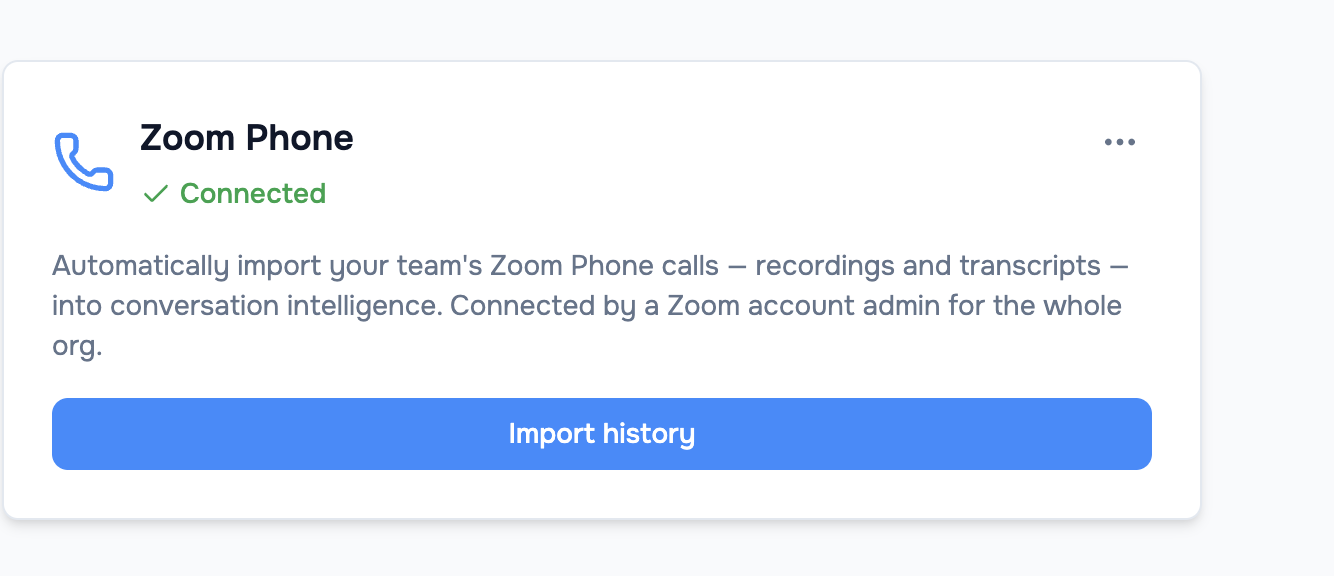
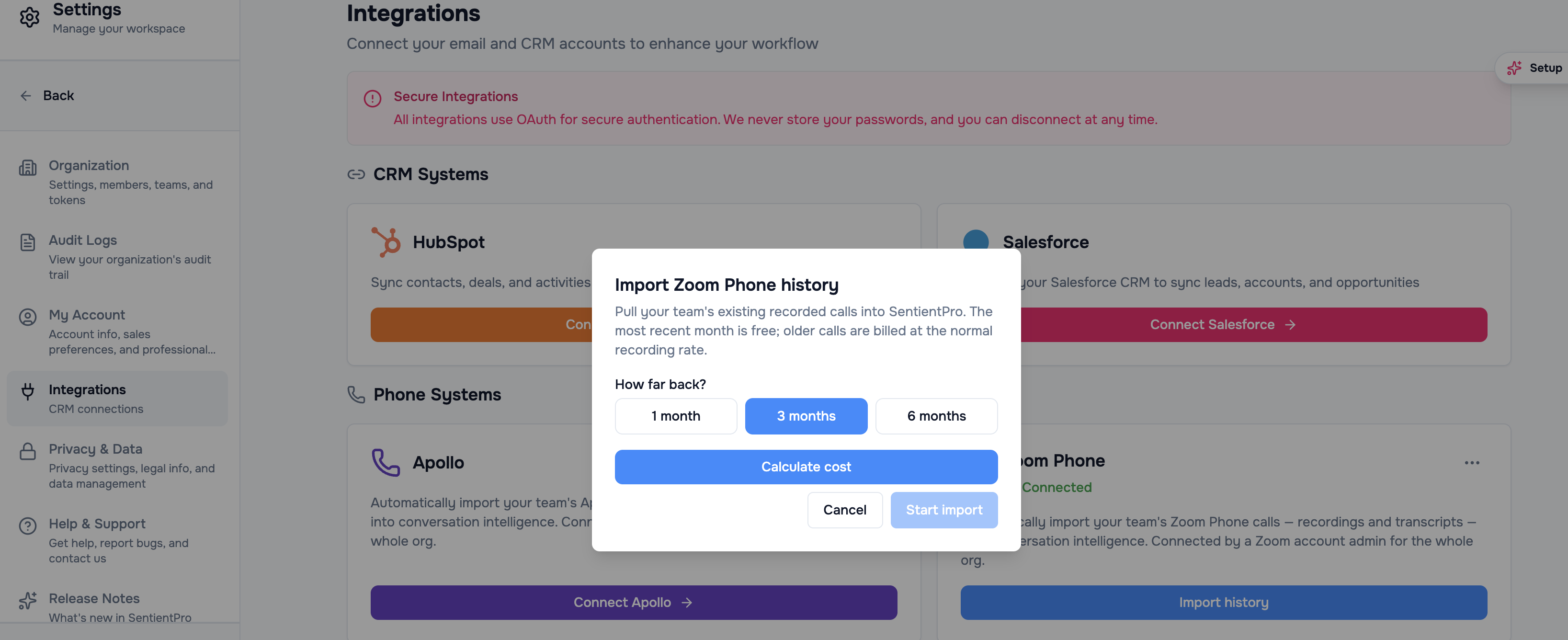
- Import history: To bring in calls from before you connected, open Settings → Integrations → Zoom Phone and click Import history. Under How far back? choose 1 month, 3 months, or 6 months, click Calculate cost to see what the import will use, then click Start import. The most recent month is always free; older calls are billed at the normal recording rate. Progress is displayed live on the card, and you can stop an in-progress import at any time and resume or restart it later.
- Delete imported calls: Organization admins can permanently delete all calls imported from Zoom Phone at any time, from the options menu on the Zoom Phone card. This is irreversible and requires typing a confirmation.
4. Disconnect the app
Disconnecting is restricted to SentientPro organization admins, because it stops call syncing for the entire organization. The options menu containing this action is only visible to organization admins — if you don't see it, ask an admin on your team to disconnect.
- Sign in to SentientPro as an organization admin and open Settings → Integrations.
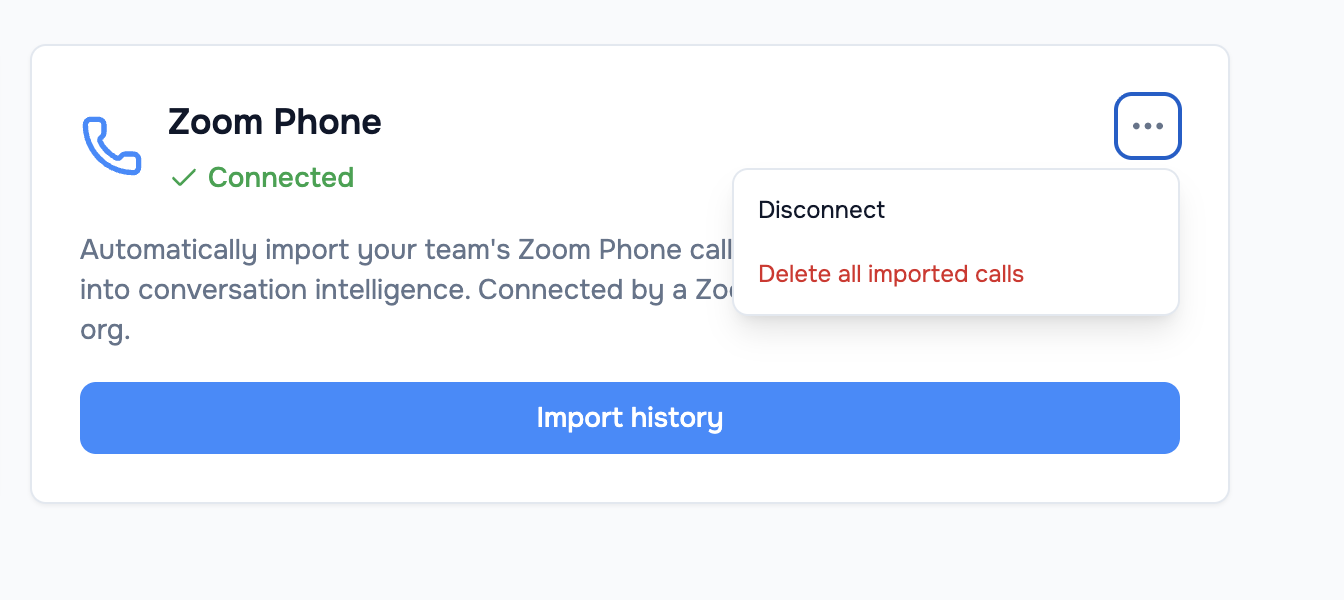
- On the Zoom Phone card, open the options menu (⋯) and select Disconnect.
- Confirm the action in the dialog.
When you disconnect:
- SentientPro's OAuth access token is revoked with Zoom — no new calls, recordings, or transcripts are pulled after this point
- Calls already imported are kept, not deleted. Disconnecting only stops future syncing, so your team keeps the history and coaching insights already built up
- To also remove the imported data, use Delete all imported calls from the same options menu. This is a separate, explicit action, and it is irreversible — it deletes both the stored recordings and the call records
- Reconnecting later restores syncing under the same Zoom account; nothing needs to be reconfigured
5. Uninstall the app
Disconnecting in SentientPro (section 4) revokes the token and stops all access. To also remove the app from your Zoom account:
- Sign in to your Zoom account and go to the Zoom App Marketplace.
- Click Manage → Added Apps, or search for the SentientPro app.
- Select the SentientPro app.
- Click Remove.
Removing the app in Zoom stops SentientPro from receiving any further call events. It does not delete calls already imported into SentientPro — use Delete all imported calls in SentientPro if you also want the imported data removed.
Data shared with SentientPro
SentientPro requests the following Zoom OAuth scopes. All access is read-only, and all scopes are account-level because the integration is authorized once by an admin on behalf of the organization.
| Scope | Used for |
|---|---|
phone:read:list_call_logs:admin | Listing the calls available to import |
phone:read:call_log:admin | Call details — direction, timestamps, duration, and phone numbers |
phone:read:list_recordings:admin | Locating the recording associated with a call |
phone:read:call_recording:admin | Downloading the recording audio for transcription and in-app playback |
phone:read:recording_transcript:admin | Using Zoom's native transcript when one is available |
phone:read:list_users:admin | Matching Zoom Phone users to SentientPro users by email so calls are attributed correctly |
Call recordings are downloaded server-side and stored in private, encrypted cloud storage. They are never exposed publicly — in-app playback is served through short-lived, expiring links — and are automatically deleted after the retention period for your plan. OAuth tokens are encrypted at rest and used only server-side.
Troubleshooting
Zoom declined the authorization. The authorization must be performed by a Zoom account admin or owner. Zoom blocks other roles from approving organization-wide access, so sign in to Zoom with an admin account before clicking Allow.
Calls aren't appearing after connecting.
- Confirm the connected Zoom account has active Zoom Phone licences. If Zoom Phone is not enabled on the account, no call data can be retrieved
- Check the Zoom Phone card for an unmatched-users notice — those users' calls are skipped until their Zoom email matches a SentientPro account
- Allow a few minutes after a call ends for the recording and transcript to be processed
A specific call has no recording or transcript. Recordings that have expired or been deleted in Zoom can no longer be retrieved. Calls without a recording carry no content to transcribe and are not imported. Native transcripts require Zoom AI Companion / Power Pack; without it, SentientPro transcribes the recording itself, which can take slightly longer.
Support
Need help? Contact us at support@sentientpro.com.
For privacy questions, see our Privacy Policy and Data Processing Addendum.