
The SentientPro MCP connector lets you use SentientPro from your AI assistant. Ask about your calls, digest, coaching and actions in plain language, and add follow-ups to your boards, without leaving the conversation. The assistant signs in as you and sees exactly what you can see in SentientPro, nothing more.
MCP (Model Context Protocol) is the open standard AI assistants use to connect to other apps, so the connector works with Claude and with any other assistant that supports MCP connectors with sign-in.
What this integration does
- Lets your assistant search your calls and read their summaries, objections, competitors, pain points, action items and transcripts
- Summarises your weekly digest, your coaching scores by skill and your weakest skills, and shows where you are on the Gym leaderboard
- Lists your actions, adds new follow-ups to your own boards and marks your actions done, always asking you first
- Gives you a link to practise one of your calls as an AI roleplay
- For managers, answers the same questions about people on their own teams
- Reads only what your SentientPro account can already see. It can't delete anything, change calls, scores or settings, or act for anyone else
Requirements
- A SentientPro account in an organization on the SenPro Teams plan (the MCP connector is not available on other plans)
- An AI assistant that supports MCP connectors with sign-in, such as Claude
- On a Claude Team or Enterprise plan, an Owner may need to add the connector for your organization (see step 1)
1. Connect the connector
In Claude:
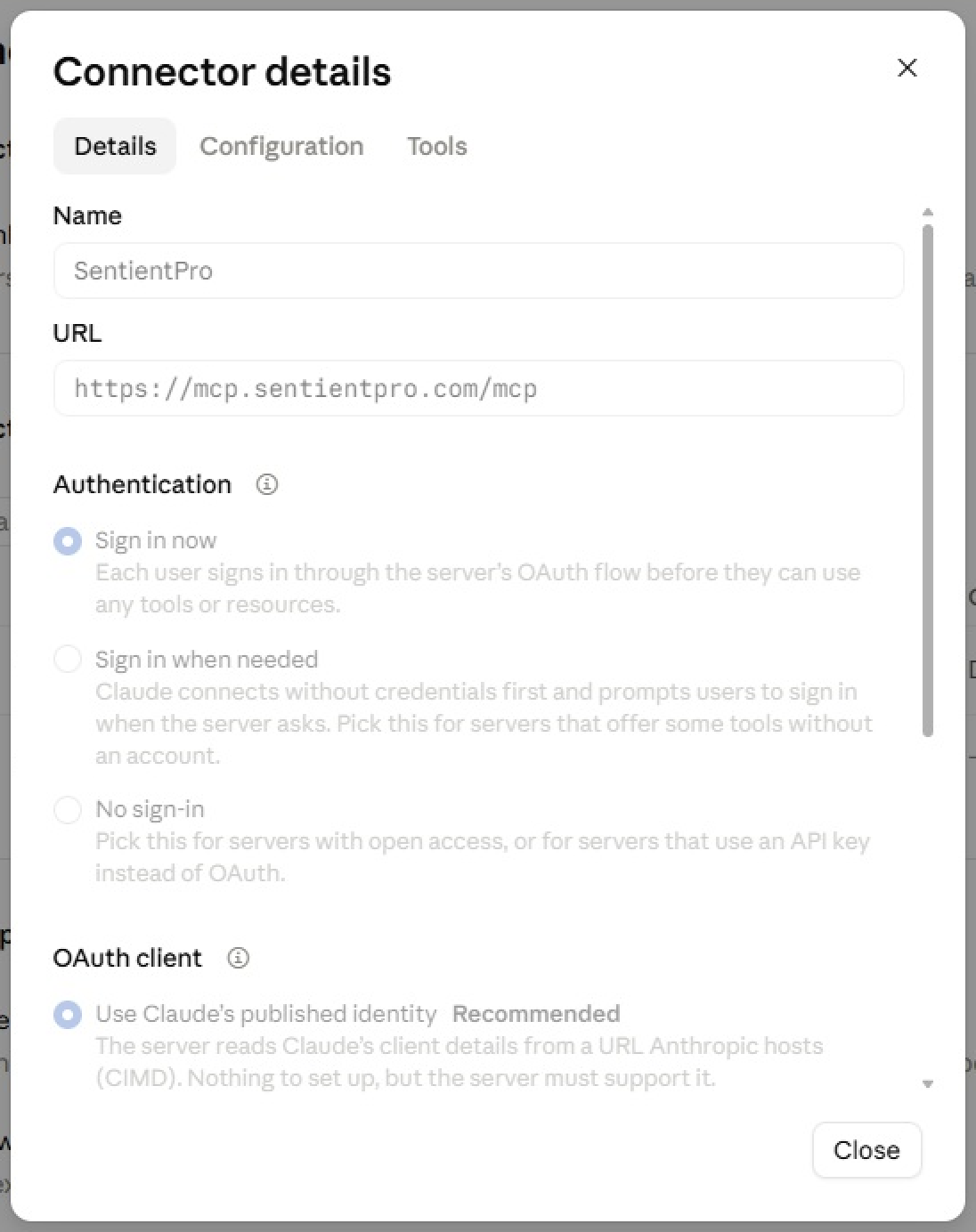
- Open Customize → Connectors → Add custom connector. On a Claude Team or Enterprise plan, an Owner adds it for everyone under Organization settings → Connectors.
- Name it SentientPro and enter the address https://mcp.sentientpro.com/mcp, then save.
- Click Connect. A SentientPro page opens: sign in as you normally do.
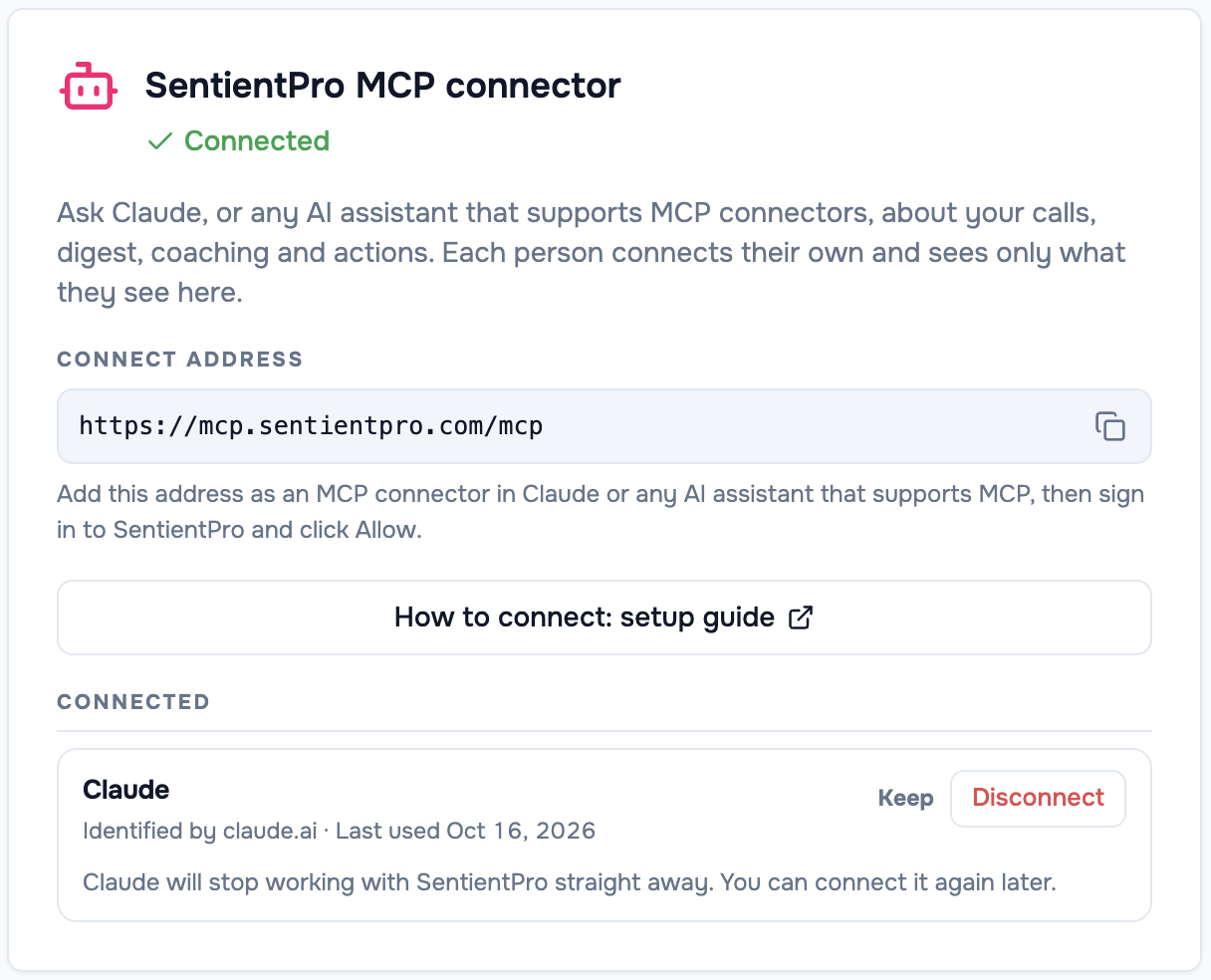
Signed in to SentientPro? The same address, with a copy button, is under Settings → Integrations → SentientPro MCP connector.
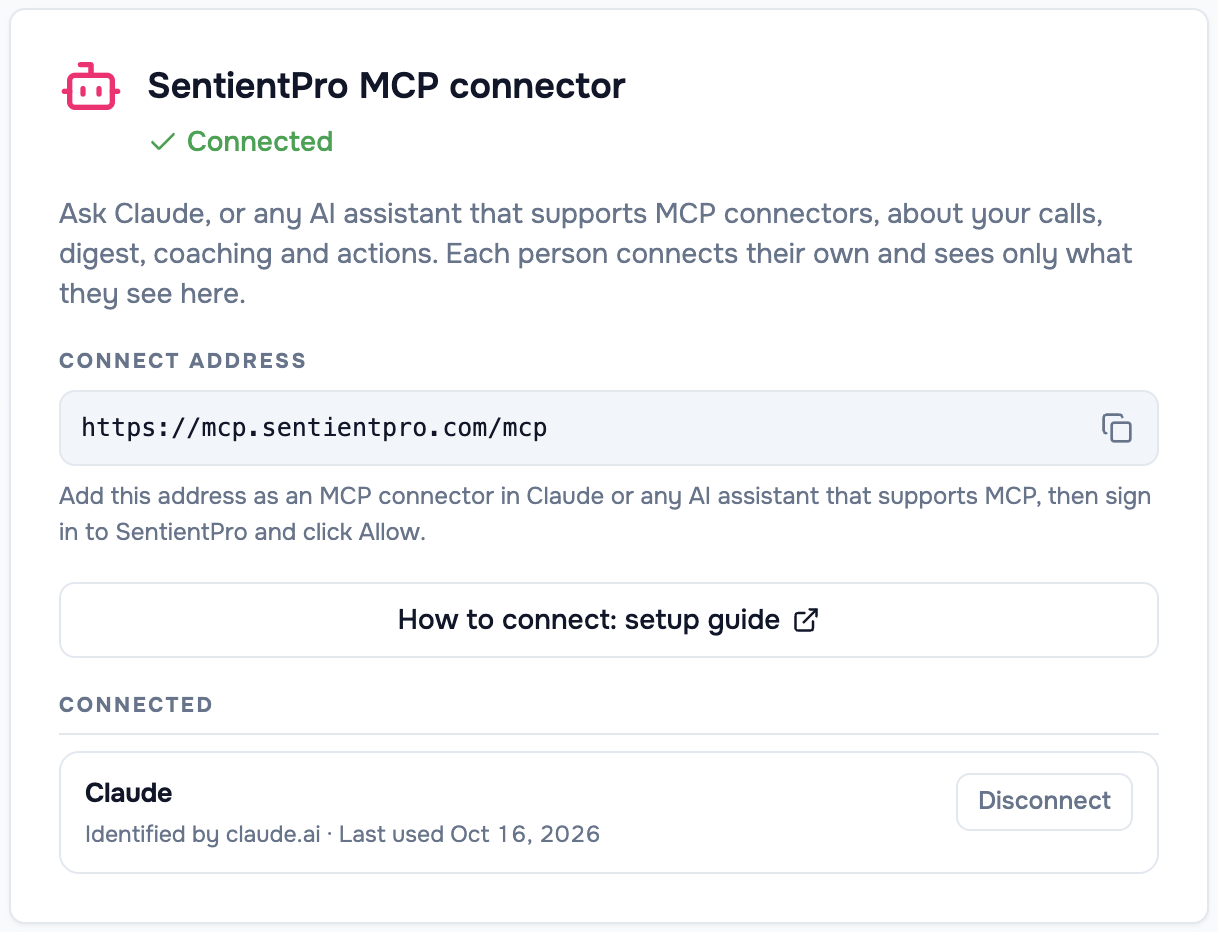
In another AI assistant: any assistant that supports MCP connectors with sign-in works the same way. In its settings, add an MCP connector (sometimes called a custom connector or MCP server) with the address https://mcp.sentientpro.com/mcp, then sign in to SentientPro when it asks. Claude is the assistant we test against; menus in other assistants may be named differently.
2. Approve access
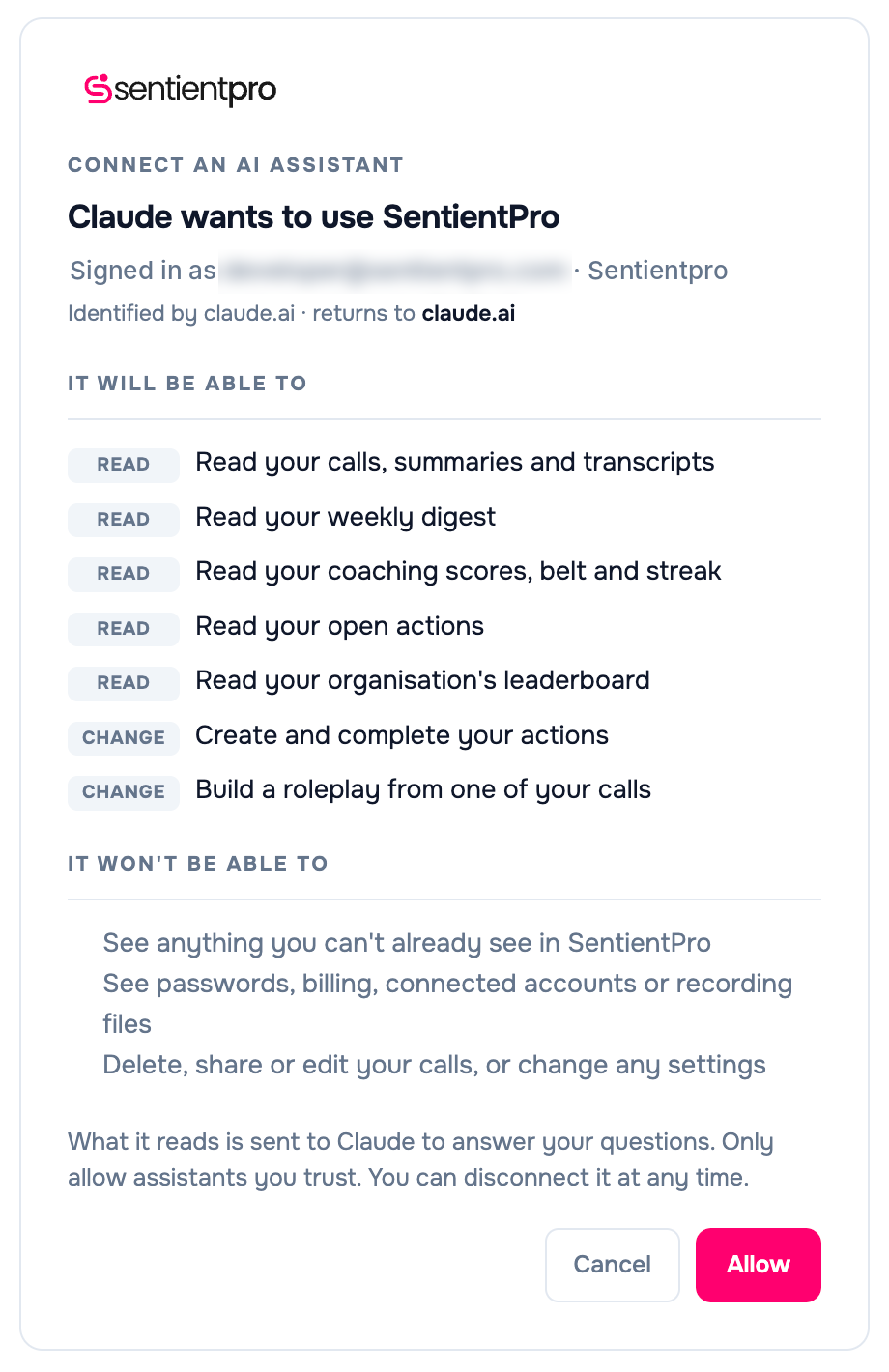
After you sign in, SentientPro shows a page titled "Claude wants to use SentientPro" (or your assistant's name). Before you click anything, check:
- Signed in as: your email and organization, so you know which account the assistant will use
- Returns to: the address the browser goes back to afterwards, which shows which app is really asking. The name at the top is supplied by the assistant; the return address can't be faked
- It will be able to: what the assistant is asking for (listed under Data shared with your AI assistant below)
- It won't be able to: see anything you can't already see in SentientPro; see passwords, billing, connected accounts or recording files; delete, share or edit your calls, or change any settings
Click Allow to connect. You're taken back to your assistant and can start asking. Click Cancel to go back without connecting; nothing is shared.
If the assistant runs on your computer rather than on the web, the page also warns you about that. Only allow it if you started connecting from an app you trust.
3. Use the connector
Ask your assistant in your own words. For example:
| You can | For example |
|---|---|
| Find calls | "Find my calls with Northwind from last month" |
| Read a call | "Summarise my last call with Northwind: objections, competitors and next steps" |
| Read a transcript | "What exactly did they say about pricing in that call?" |
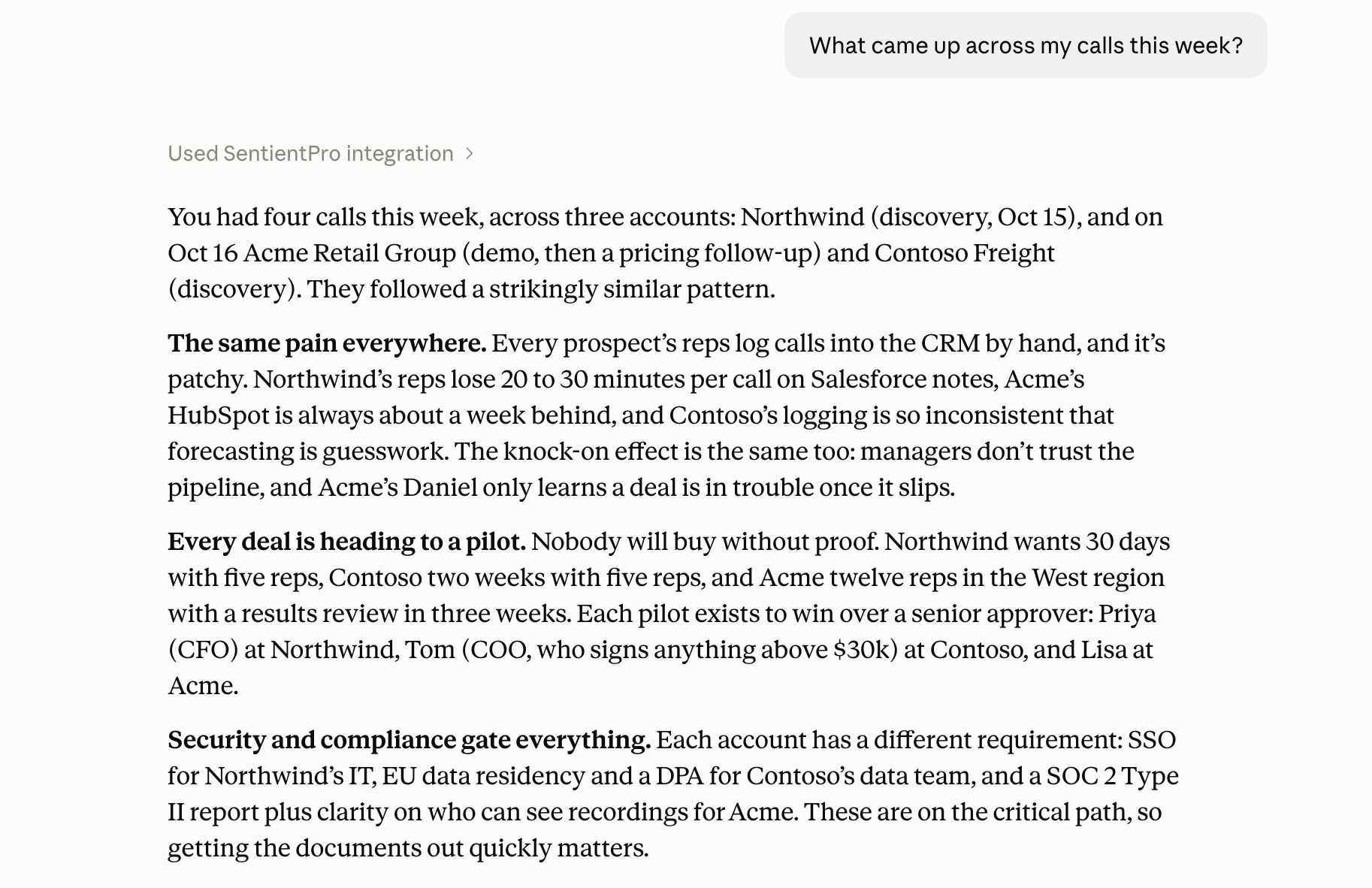
| Get your weekly digest | "What came up across my calls this week?" |
| See your coaching scores | "How are my MEDDPICC scores trending?" |
| Find your weakest skills | "Which skills should I work on?" |
| Check the leaderboard | "Where am I on the Gym leaderboard?" |
| List your actions | "What's still open on my board?" |
| Add an action | "Add a follow-up to send Northwind the proposal by Friday" |
| Complete an action | "Mark the Northwind proposal action as done" |
| Practise a call | "Give me a roleplay to retry my last discovery call" |
Managers can also ask about people on their own teams, for example "What are Sam's weakest skills this month?". Managers can't see anyone outside their teams, and each time a manager views a team member's scores it is recorded, as it is in the app.
Good to know:
- Claude asks you before it adds or completes an action. Actions are only ever added to your own boards and are never assigned to anyone else, so no one gets a notification from it
- A practise link opens the practice page in SentientPro with the scenario ready; nothing starts until you review it and click Start
- Answers link back to the call in SentientPro, so you can open it in the app
4. Disconnect the connector
Each person connects their own assistant, and you can disconnect yours at any time:
- Open Settings → Integrations in SentientPro.
- On the SentientPro MCP connector card, find the assistant under Connected and click Disconnect.
- Click Disconnect again to confirm.
When you disconnect:
- The assistant stops working with SentientPro straight away, on its very next request
- Every key that assistant holds for your account is revoked
- Nothing in SentientPro is deleted or changed: your calls, scores and the actions the assistant created all stay as they are
- To use it again later, connect again and click Allow
Access also ends if you're removed from your organization, or if your organization's plan no longer includes the MCP connector.
5. Remove the connector from your assistant
Disconnecting in SentientPro (section 4) ends the assistant's access. To also remove SentientPro from your assistant:
- In Claude, open Customize → Connectors.
- Open the SentientPro connector and remove it. On a Claude Team or Enterprise plan, an Owner removes organization-wide connectors under Organization settings → Connectors.
Removing the connector in Claude alone doesn't revoke its access on SentientPro's side, so disconnect in SentientPro as well if you want access to end immediately.
Data shared with your AI assistant
The assistant asks for the following permissions when you connect. You see them on the approval page before you click Allow.
| Permission | Used for |
|---|---|
calls:read | Searching your calls and reading their summaries, insights and transcripts |
digest:read | Reading your weekly digest |
coaching:read | Reading your coaching scores, weakest skills, belt and streak |
leaderboard:read | Reading your organization's Gym leaderboard |
actions:read | Listing your actions and the suggestions from your calls |
actions:write | Adding actions to your own boards and marking your actions done (the assistant asks you first) |
roleplay:write | Getting a link to practise one of your own calls in roleplay |
offline_access | Staying connected without signing in again every hour |
All access is limited to what your SentientPro account can already see. The assistant never receives phone numbers, meeting links or recording files.
SentientPro keeps a record of each connection (the assistant's name, where it returns to, the permissions you approved, and when it was connected and last used), and records each use in your organization's audit log: which feature was used and on what, never the content. Access keys expire after one hour and renewal keys after thirty days, and are stored only in hashed form. What the assistant reads is sent to the assistant you connected, only when you ask it something, and is handled under that assistant's own terms.
Troubleshooting
"The MCP connector is part of SenPro Teams". Your organization's plan doesn't include the MCP connector. Ask your SentientPro admin.
Your assistant can't add the connector, or sign-in doesn't open. Check the address is exactly https://mcp.sentientpro.com/mcp. On a Claude Team or Enterprise plan, an Owner may need to allow or add custom connectors for your organization.
The assistant asks you to sign in again. The connection was disconnected, or you were removed from the organization. Connect again.
A call "can't be found". You don't have access to it in SentientPro either.
Support
Need help? Contact us at support@sentientpro.com.
For privacy questions, see our Privacy Policy and Data Processing Addendum.