
HubSpot Integration Setup Guide
SentientPro connects to HubSpot to bring your CRM data into your day-to-day workflow. Connect your HubSpot account to see live deal information on your dashboard and enrich meeting briefs with contact engagement history.
What this integration does
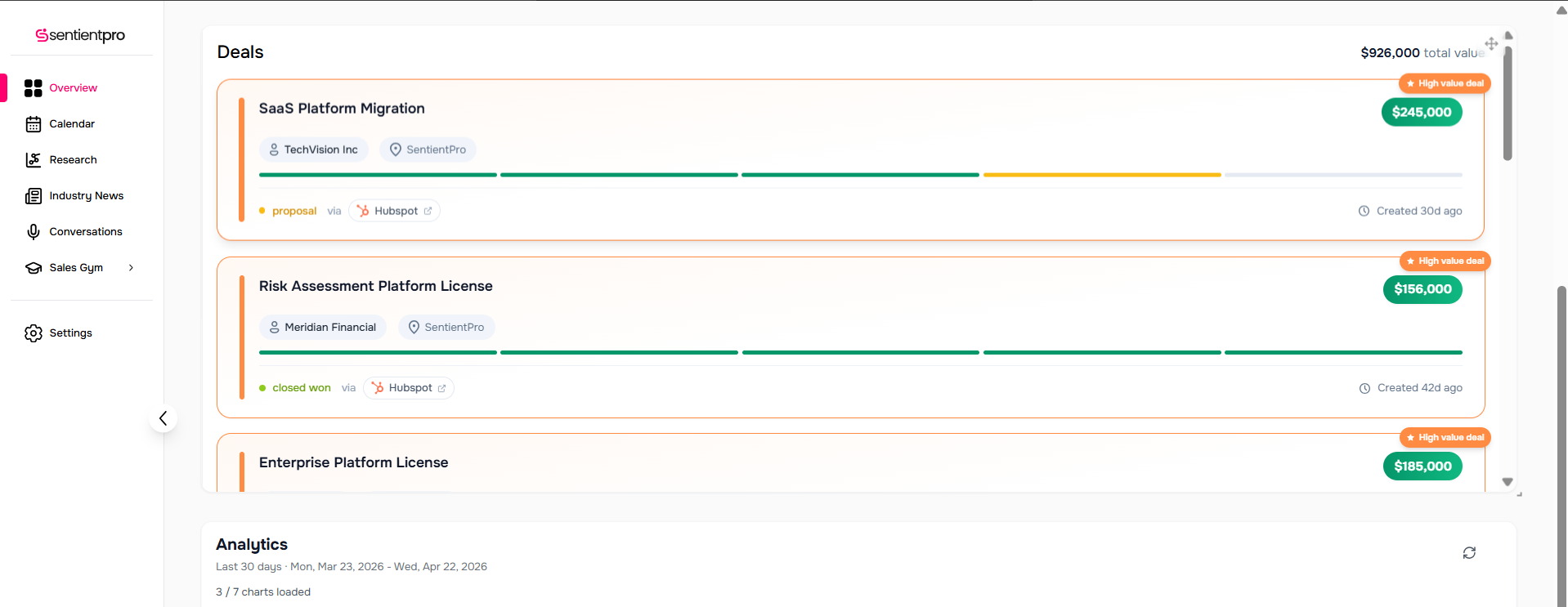
- Displays your HubSpot deals on the SentientPro dashboard, with owner and stage information
- Enriches meeting briefs with HubSpot contact engagement history (notes, calls, logged emails) so you walk into every meeting with full context
- Read-only — SentientPro does not modify any data in your HubSpot portal
Requirements
- A SentientPro account on the SenPro Teams plan (CRM integrations are not available on other plans)
- A HubSpot account where you have permission to install third-party apps
- A HubSpot user with read access to companies, contacts, deals, and owners
1. Install the app
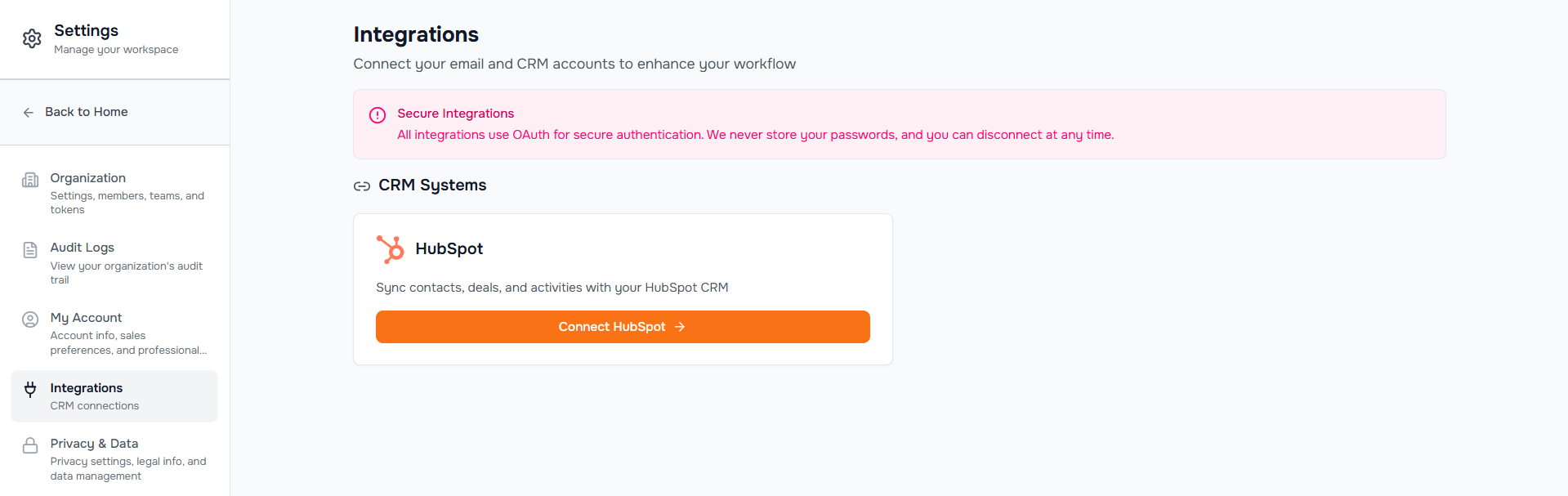
- Sign in to SentientPro and open Settings → Integrations.
- Find the HubSpot card and click Connect HubSpot.
- HubSpot will prompt you to sign in and authorize SentientPro. Review the requested permissions, pick the HubSpot account you want to connect, and click Connect app.
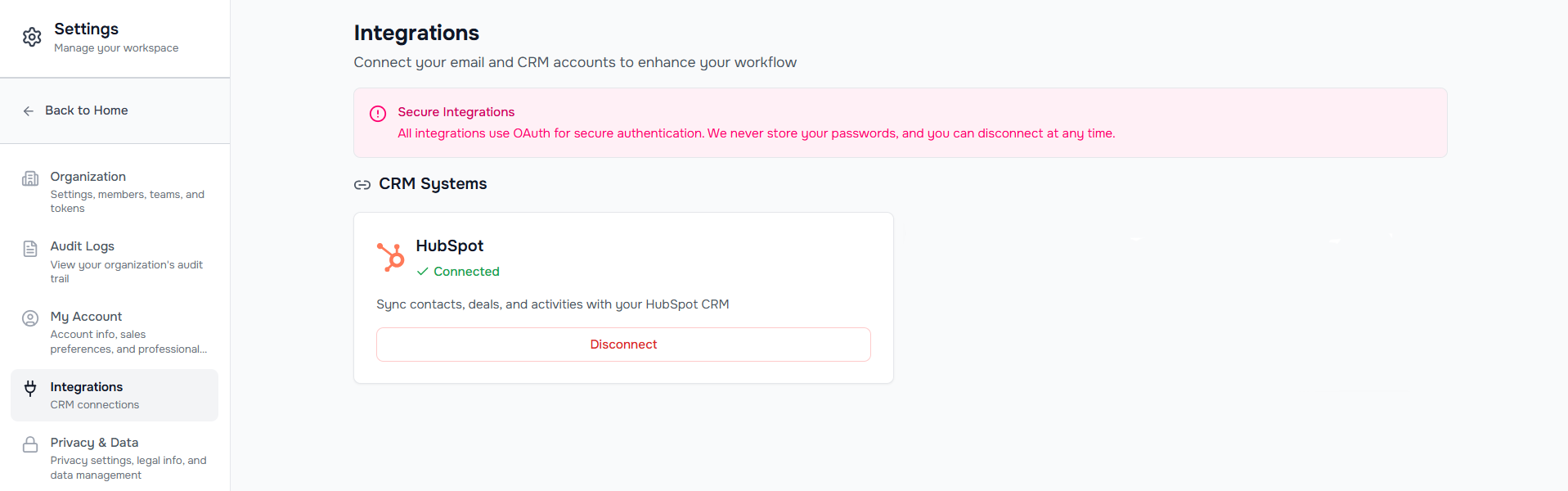
- You'll be redirected back to SentientPro. The HubSpot card now shows Connected.
2. Configure the app
No configuration is required. Once you complete the install step above, SentientPro begins syncing your HubSpot deals and contact engagement data automatically. Data refreshes run in the background on a regular schedule.
3. Use the app
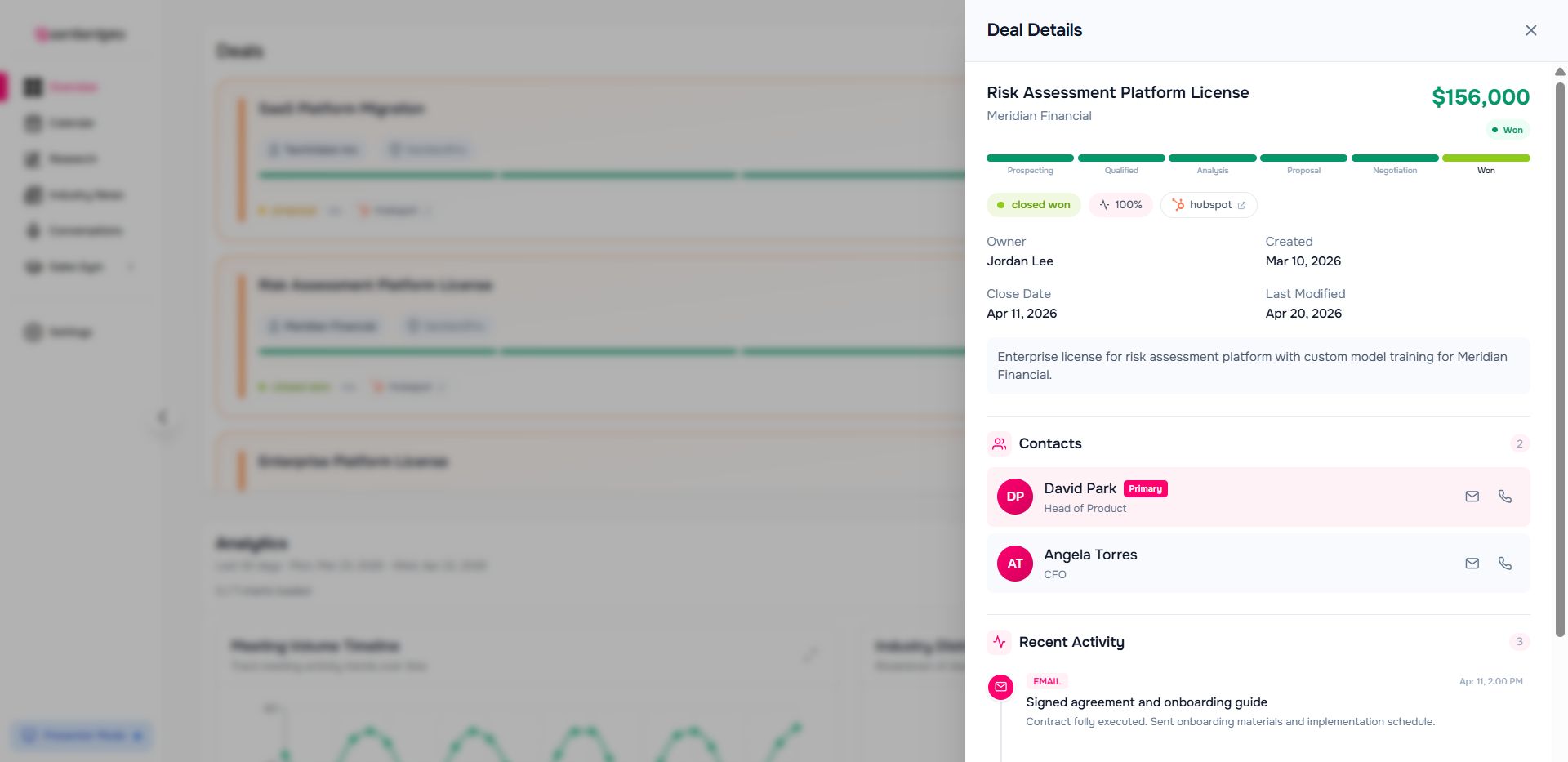
- Dashboard — Deals widget: Your active HubSpot deals appear in the Deals widget on your SentientPro dashboard. Click any deal to see detail.
- Meeting briefs: When SentientPro generates a brief for an upcoming meeting, contacts matched to your HubSpot CRM will include their recent engagement history directly in the brief.
4. Disconnect the app
To disconnect your HubSpot account from SentientPro:
- Open Settings → Integrations in SentientPro.
- On the HubSpot card, click Disconnect.
- Confirm the action in the dialog.
When you disconnect:
- SentientPro's OAuth access token for your account is revoked with HubSpot
- All HubSpot data cached inside SentientPro for your account — deals and meeting associations — is permanently deleted
- The Deals widget and any HubSpot-derived brief sections stop showing HubSpot data for you
- If you're the last teammate connected via this HubSpot account, the SentientPro app is also uninstalled from your HubSpot portal's Connected Apps. If other teammates remain connected, the portal install stays active for them and only your access is removed
5. Uninstall the app
The Disconnect step in section 4 performs a full uninstall: the app is removed from your HubSpot Connected Apps and all cached data is deleted from SentientPro.
If for any reason the app still appears in HubSpot after disconnecting, you can remove it manually from HubSpot's side — see HubSpot's guide: Connect and disconnect integrations.
Data shared with SentientPro
SentientPro requests the following HubSpot OAuth scopes. All access is read-only.
| Scope | Used for |
|---|---|
crm.objects.companies.read, crm.schemas.companies.read | Matching contacts to their companies for brief context |
crm.objects.contacts.read, crm.schemas.contacts.read | Matching meeting attendees to HubSpot contacts |
crm.objects.deals.read, crm.schemas.deals.read | Dashboard Deals widget; deal-contact associations |
crm.objects.owners.read | Deal and meeting owner display |
sales-email-read | Reading HubSpot-logged emails (subject, body, sender, recipient, timestamp) to enrich brief engagement context |
Support
Need help? Contact us at support@sentientpro.com.
For privacy questions, see our Privacy Policy and Data Processing Addendum.